Introduction: VMware vSphere Enables Enterprise Infrastructure
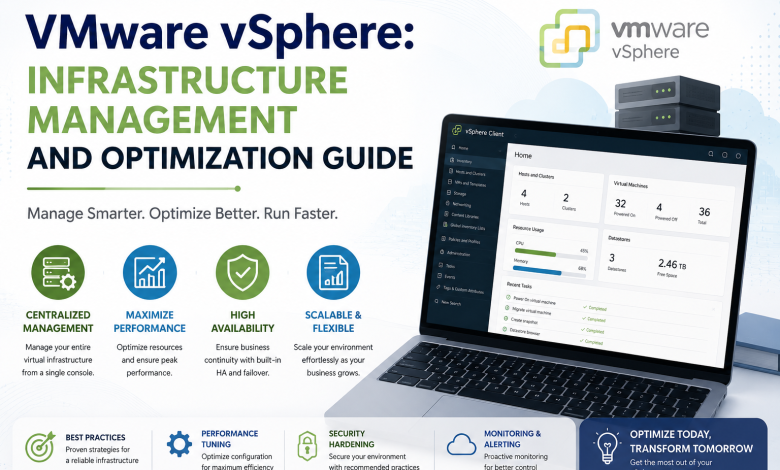
VMware vSphere manages virtualized infrastructure.
Multiple virtual machines run on single physical servers.
vSphere handles:
- Resource allocation
- VM migration
- Storage management
- High availability
- Disaster recovery
Understand vSphere properly. Mistakes affect production.
This guide covers:
- vSphere architecture
- Storage strategy
- Performance optimization
- Best practices
- Common issues
What VMware vSphere Actually Is
vSphere is an infrastructure management platform.
Core components:
vCenter = Management console
          Makes intelligent decisions about VMs
          Monitors everything

ESXi = Host hypervisor
       Runs virtual machines
       Managed by vCenter

Datastore = Storage where VMs live
           Can be local or remote
           Shared or dedicated

Network = Virtual switches and networks
         VMs communicate through them
Understanding these relationships is critical.
Part 1: Architecture and Planning
Understand Datastore Architecture
Datastore is where VM files live.
All VMs on same datastore share disk I/O.
Problem: One VM doing heavy operations slows all VMs on that datastore.
Solution: Spread VMs across multiple datastores by workload type.
Example distribution:
Datastore 1: Production databases (need fast I/O)
Datastore 2: Web servers (moderate I/O)
Datastore 3: Development/Test (less critical)
Best practice: Never fill datastore beyond 80% capacity.
Plan Resource Allocation
Physical ESXi host has limited resources:
- CPU cores
- RAM
- Network bandwidth
- Storage I/O
Common mistake: Allocate 100% of resources to VMs.
Problem: No buffer for spikes. Everything gets slow.
Solution: Allocate 70-80% of physical resources to VMs. Reserve 20-30% headroom.
Example:
Host has: 16 CPU cores, 64GB RAM

Safe allocation:
- 12 cores for VMs (leave 4 cores free)
- 48GB for VMs (leave 16GB free)
Choose Storage Type
Local Storage:
- Attached directly to ESXi host
- Fast
- Can’t migrate VMs easily
- Use for: Non-critical servers, testing
SAN (Storage Area Network):
- Shared network storage
- VMs can migrate easily
- Expensive
- High performance
- Use for: Production, critical systems
NAS (Network Attached Storage):
- Shared network storage
- Cheaper than SAN
- Slightly slower
- Adequate for many workloads
- Use for: Less critical production
Part 2: Virtual Machine Management
Creating VMs Efficiently
Manual creation: Time-consuming, error-prone.
Better approach: Use templates.
Template benefits:
- Consistent configuration
- Pre-installed OS and software
- Security policies already applied
- Deploy new VMs in minutes
Template creation:
- Create perfect VM (OS, software, security)
- Convert to template
- Clone from template for new VMs
Virtual Machine Monitoring
Monitor:
- CPU usage (alert if >80%)
- Memory usage (alert if >85%)
- Disk space (alert if >80% full)
- Disk I/O (identifies bottlenecks)
- Network latency (identifies network issues)
In vCenter:
- Watch real-time metrics
- Review trends
- Identify performance issues early
Snapshot Management
Snapshots are point-in-time backups.
Common use: Before major updates.
1. Create snapshot
2. Apply updates
3. If successful, delete snapshot
4. If failed, revert to snapshot
Important: Never leave snapshots running long-term.
Problem: Snapshots consume disk space. Old snapshots fill datastores.
Best practice: Delete snapshots after issue is resolved.
Using vMotion for Zero-Downtime Migration
vMotion migrates running VMs between hosts.
Use case: Host needs maintenance.
Without vMotion:
- Shut down VMs
- Perform maintenance
- Start VMs
- Downtime: 2+ hours
With vMotion:
- VMs migrate while running
- Users experience no downtime
- Downtime: 0 seconds
Caution: Don’t migrate too many VMs at once. Host gets slow.
Part 3: Storage Optimization
Datastore Capacity Planning
Monitor datastore usage:
- Track daily usage trends
- Alert at 70% full
- Plan expansion at 80%
Don’t wait until full:
- Performance degrades
- Cannot provision new VMs
- Production impact
Best practice: Proactively monitor and expand datastores.
Thin vs Thick Provisioning
Thick provisioning:
- Allocate full size upfront
- Space reserved immediately
- Slower to create
- Safe (space guaranteed)
Thin provisioning:
- Allocate space as needed
- Saves space initially
- Faster to create
- Risk if datastore fills unexpectedly
Recommendation: Use thin provisioning but monitor closely. Have alerts for low space.
VM Disk Consolidation
Over time, VMs accumulate snapshots and temporary files.
Issues:
- Wasted space
- Performance degradation
- Datastore fills unexpectedly
Consolidation process:
- Power off VM
- Remove old snapshots
- Consolidate disks
- Power on VM
Timing: Perform during maintenance windows.
Part 4: Performance Tuning
Identify Slow VM
VM is slow = Usually resource issue:
Check:
- CPU usage: At 100%? → Add more CPU
- Memory usage: At 100%? → Add more RAM
- Disk I/O: High? → Move to different datastore
- Network latency: High? → Network issue
Most problems are one of these four.
CPU Performance
Problem: VM CPU maxed out.
Solutions:
- Add more CPU
- Reduce workload
- Optimize application
- Move to faster host
Monitoring:
- Watch CPU % utilization
- Check for sustained high usage
- Investigate spikes
Memory Performance
Problem: VM memory maxed out.
Solutions:
- Add more RAM
- Reduce workload
- Enable memory compression
- Optimize application
Caution: Adding swapped memory reduces performance significantly.
Storage Performance
Problem: Slow disk I/O.
Causes:
- Datastore overloaded
- Competing VMs
- Slow storage
- High-demand workload
Solutions:
- Move VM to different datastore
- Use faster storage
- Optimize workload
- Spread load across multiple datastores
Part 5: High Availability Configuration
vSphere HA (High Availability)
If host fails, VMs automatically restart on another host.
Requirements:
- Minimum 2 ESXi hosts
- Shared storage
- Network connectivity between hosts
How it works:
- Host 1 fails
- vCenter detects failure
- VMs restart on Host 2 (within minutes)
Important: HA reduces downtime but not zero-downtime.
vSphere Fault Tolerance
VMs run simultaneously on two hosts.
How it works:
- VM runs on Host 1
- VM also runs on Host 2 (shadow copy)
- If Host 1 fails, VM continues on Host 2
- Downtime: Zero
Tradeoff: Uses double the resources.
Backup Strategy
Even with HA, backup is required:
Why:
- Data corruption
- Ransomware attacks
- Deleted data
- Long-term disaster recovery
Backup approach:
- Daily snapshots
- Weekly full backups
- Monthly off-site backup
- Test recovery regularly
Tools: Veeam, Acronis, native vSphere backup
Part 6: Networking in vSphere
Virtual Switches
Virtual switches connect VMs to physical network.
Setup:
Physical Network Card (eth0)
    ↓
Virtual Switch (vSwitch0)
    ↓
Port Groups (Management, vMotion, VM Network)
    ↓
VM Virtual Network Adapters
    ↓
VMs get network access
Port Groups
Each port group is a virtual network.
Common port groups:
- Management network (vCenter access)
- vMotion network (VM migration)
- VM Network (user VMs)
- Storage network (iSCSI, NFS)
Each VM connects to appropriate port group.
Part 7: Monitoring and Troubleshooting
Essential Monitoring
Monitor in vCenter:
Host health:
- CPU usage
- Memory usage
- Network connectivity

VM health:
- CPU usage
- Memory usage
- Disk space
- Disk I/O

Datastore health:
- Capacity
- I/O performance
- Replication status (if applicable)

Network health:
- Latency
- Bandwidth usage
- Errors
Common vSphere Issues
Issue 1: VM Won’t Start
Check:
- Host has enough resources?
- Datastore has free space?
- Network connectivity?
- License valid?
Solutions:
- Free up resources
- Expand datastore
- Check network
- Renew license
Issue 2: Slow VM Performance
Check resources:
vm_cpu_usage = current CPU%
vm_memory_usage = current memory%
datastore_latency = disk I/O latency
Add resources if:
- CPU consistently >80%
- Memory consistently >85%
- Disk latency high
Issue 3: Datastore Running Full
Immediate actions:
- Find large VMs or old snapshots
- Delete unnecessary snapshots
- Move VMs to different datastore
- Expand storage capacity
Prevention:
- Monitor regularly
- Alert at 70% capacity
- Plan expansions in advance
Part 8: Best Practices Summary
Pre-Deployment
- Plan OU structure
- Plan storage distribution
- Plan resource allocation
- Create templates
- Document decisions
During Deployment
- Use templates for consistency
- Allocate resources conservatively
- Monitor from day one
- Test HA procedures
- Test backups
Post-Deployment
- Monitor continuously
- Alert on resource issues
- Plan capacity expansions
- Test disaster recovery
- Review logs regularly
Conclusion: Plan, Monitor, Optimize
vSphere is powerful infrastructure platform.
Mismanagement causes production incidents.
Invest time in:
- Planning before deployment
- Proper resource allocation
- Continuous monitoring
- Regular backups
- Disaster recovery procedures
Time invested upfront saves massive time later.
also Read: PowerShell Scripting for System Admins: Practical Guide with Real Examples