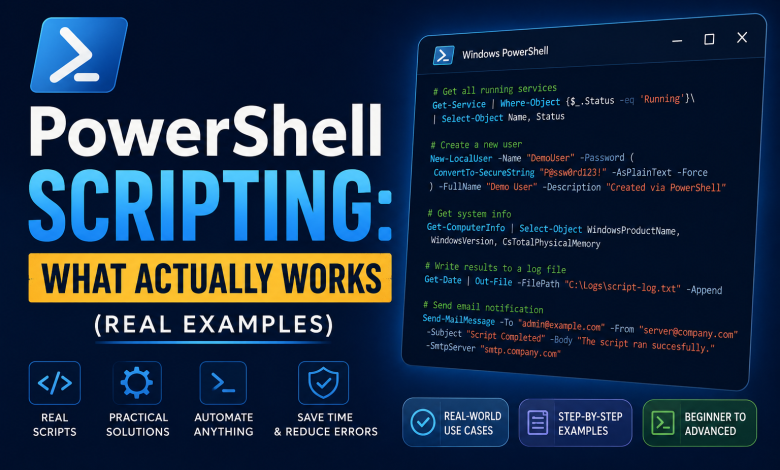
PowerShell Scripting for System Admins: Practical Guide with Real Examples

Introduction: Why System Admins Need PowerShell
Managing infrastructure manually is inefficient.
Updating 100 servers manually takes 2+ hours. The same task with PowerShell takes 2 minutes.
PowerShell isn’t complicated. It’s practical automation.
This guide covers:
- What PowerShell actually is
- Real scripts you can use today
- Common mistakes to avoid
- Best practices for production
What PowerShell Actually Is
PowerShell is an automation language built into Windows.
The core concept: Ask the computer questions and tell it what to do with the answers.
Get-Service          // "What services are running?"
Get-Process          // "What processes are running?"
Get-ChildItem        // "What files exist?"
Every command follows the pattern: Verb-Noun
- Get-Service (get information about services)
- Set-ItemProperty (set a property)
- Remove-Item (delete something)
- Start-Service (start something)
Once you understand this pattern, you can guess most commands.
Part 1: Essential PowerShell Concepts
Cmdlets (Commands)
A cmdlet is a PowerShell command.
Get-ServiceReturns a list of services.
Piping (The Powerful Part)
The pipe (|) takes output from one command and sends it to another.
Get-Service | Where-Object {$_.Status -eq "Running"}Translation: “Get services, then filter to show only running ones.”
Variables
Store values for reuse:
$serverName = "Server1"
$date = Get-Date
$services = Get-Service
Loops
Repeat actions for multiple items:
$servers = "Server1", "Server2", "Server3"

foreach ($server in $servers) {
    Get-Service -ComputerName $server
}
Part 2: Practical Scripts for System Admins
Script 1: Check Disk Space on Multiple Servers
This script checks free disk space and alerts if below threshold:
$servers = "Server1", "Server2", "Server3", "Server4"
$threshold = 10GB

foreach ($server in $servers) {
    $volumes = Get-Volume -ComputerName $server

    foreach ($volume in $volumes) {
        if ($volume.SizeRemaining -lt $threshold) {
            Write-Host "$server - Drive $($volume.DriveLetter): Only $([math]::Round($volume.SizeRemaining/1GB))GB free"
        }
    }
}
What it does:
- Checks each server’s disk space
- Shows drives with less than 10GB free
- Helps identify capacity issues early
Use case: Run daily via scheduled task. Get alerts before disks fill up.
Script 2: Find and Delete Old Files
Clean up old log files automatically:
$path = "C:\Logs"
$daysOld = 30
$deleteConfirm = $false  // Set to $true to actually delete

$oldFiles = Get-ChildItem $path -Recurse |
    Where-Object {$_.LastWriteTime -lt (Get-Date).AddDays(-$daysOld)}

if ($deleteConfirm) {
    $oldFiles | Remove-Item -Force
    Write-Host "Deleted $($oldFiles.Count) files older than $daysOld days"
} else {
    Write-Host "Found $($oldFiles.Count) files to delete (not actually deleting)"
    $oldFiles | Select-Object FullName, LastWriteTime
}
What it does:
- Finds files older than 30 days
- Shows what would be deleted (safe mode)
- Actually deletes when confirmed
Use case: Automated log cleanup on servers.
Script 3: Monitor Critical Services
Ensure critical services stay running:
$criticalServices = @("W3SVC", "MSSQLSERVER", "BITS")
$servers = @("AppServer1", "AppServer2", "DBServer1")

foreach ($server in $servers) {
    foreach ($service in $criticalServices) {
        $status = Get-Service -ComputerName $server -Name $service -ErrorAction SilentlyContinue

        if ($status.Status -ne "Running") {
            Start-Service -InputObject $status -ErrorAction SilentlyContinue
            Write-Host "Service $service on $server was stopped. Restarting..."
        }
    }
}
What it does:
- Checks if critical services are running
- Restarts them if stopped
- Logs actions
Use case: Run every 5 minutes via scheduled task. Auto-recovery for critical services.
Script 4: Bulk Password Reset
Reset passwords for multiple users:
$users = Import-Csv -Path "C:\users.csv"
$tempPassword = ConvertTo-SecureString "TempPass@123" -AsPlainText -Force

foreach ($user in $users) {
    try {
        Set-ADUserPassword -Identity $user.SamAccountName -NewPassword $tempPassword -Reset
        Write-Host "Password reset for $($user.Name)"
    } catch {
        Write-Host "Error resetting password for $($user.Name): $_"
    }
}
What it does:
- Reads CSV file with usernames
- Resets password for each user
- Handles errors gracefully
Use case: Bulk password resets, onboarding multiple users.
Script 5: Export Active Directory Users
Get all users and export to CSV:
Get-ADUser -Filter * -Properties Name, EmailAddress, Enabled, LastLogonDate |
    Select-Object Name, SamAccountName, EmailAddress, Enabled, LastLogonDate |
    Export-Csv -Path "C:\AllUsers.csv" -NoTypeInformation

Write-Host "User list exported to C:\AllUsers.csv"
What it does:
- Gets all AD users
- Exports to Excel-compatible CSV
- Can be filtered/analyzed in spreadsheet
Use case: User audits, management reports.
Part 3: Common Mistakes to Avoid
Mistake 1: Not Testing Before Running
Bad approach:
// Write script
// Run on production immediately
// Oops, deleted wrong files
Good approach:
// Write script
// Test on test servers first
// Verify output is correct
// Then run on production
Best practice: Always test scripts in non-production environment first.
Mistake 2: Ignoring Error Handling
Bad:
Get-Service -ComputerName $server -Name "ServiceName"
// If server is offline, script crashes
Good:
try {
    Get-Service -ComputerName $server -Name "ServiceName"
} catch {
    Write-Host "Error connecting to $server: $_"
    // Script continues
}
Best practice: Always include error handling for network operations.
Mistake 3: Hardcoded Values
Bad:
$path = "C:\Logs"
// Want to use different path? Edit script
Good:
param(
    [string]$Path = "C:\Logs",
    [int]$DaysOld = 30
)

Get-ChildItem $Path -Recurse |
    Where-Object {$_.LastWriteTime -lt (Get-Date).AddDays(-$DaysOld)}
Use it:
.\CleanLogs.ps1 -Path "D:\OldLogs" -DaysOld 60Best practice: Use parameters for flexibility.
Mistake 4: Not Scheduling Properly
Bad:
- Write script
- Run manually every week
- Forget sometimes
- Problems occur
Good:
- Write script
- Schedule in Windows Task Scheduler
- Runs automatically
- Consistent execution
Best practice: Automate recurring tasks with scheduled tasks.
useful Links:
Microsoft PowerShell docs
Part 4: PowerShell Best Practices
Write Clean Code
// Good variable names
$serverName = "Server1"
$diskSpace = Get-Volume

// Bad variable names
$s = "Server1"
$x = Get-Volume
Add Comments
// What this does
$servers = "Server1", "Server2"

// Loop through each server
foreach ($server in $servers) {
    // Check if server is reachable
    if (Test-Connection -ComputerName $server -Quiet) {
        // Get services
        Get-Service -ComputerName $server
    }
}
Use Functions for Reusable Code
function Get-DiskSpace {
    param([string]$ComputerName)

    Get-Volume -ComputerName $ComputerName |
        Select-Object ComputerName, DriveLetter, SizeRemaining
}

// Now reuse in multiple scripts
Get-DiskSpace -ComputerName "Server1"
Get-DiskSpace -ComputerName "Server2"
Part 5: Learning Resources
Official Resources
- Microsoft PowerShell Documentation
- PowerShell Gallery (scripts library)
- Stack Overflow (PowerShell tag)
Best Practices
- Test before running on production
- Use error handling
- Document what your scripts do
- Use version control (Git)
- Schedule important tasks
Common Tasks
- Active Directory automation
- File management
- Service monitoring
- User management
- Report generation
Conclusion: Start Small, Build Skills
PowerShell is powerful because it automates repetitive work.
Start with simple scripts:
- Get information
- Filter results
- Take action
Master those basics.
Everything else is building on that foundation.
The best time to learn PowerShell was yesterday. The second best time is today.
🎯 Ready to Secure Your Windows Server?
If you’re looking for a practical, step-by-step resource with checklists, PowerShell commands, audit templates, and incident response guidance, explore the Windows Server Security Hardening Toolkit.
✅ 200+ page playbook ✅ Printable checklists ✅ Excel audit worksheet ✅ PowerShell reference guide