Active Directory Setup and Configuration: Complete Guide for System Admins

Introduction: Active Directory Is Your Infrastructure Backbone
Active Directory (AD) is critical infrastructure.
It manages:
- User authentication
- Computer access control
- Permission management
- Security policies
- Resource sharing
Get AD right from the start. Fixing it later is expensive.
This guide covers:
- Planning before installation
- Setup and configuration
- Organizational structure
- Best practices
- Common pitfalls
What Active Directory Actually Is
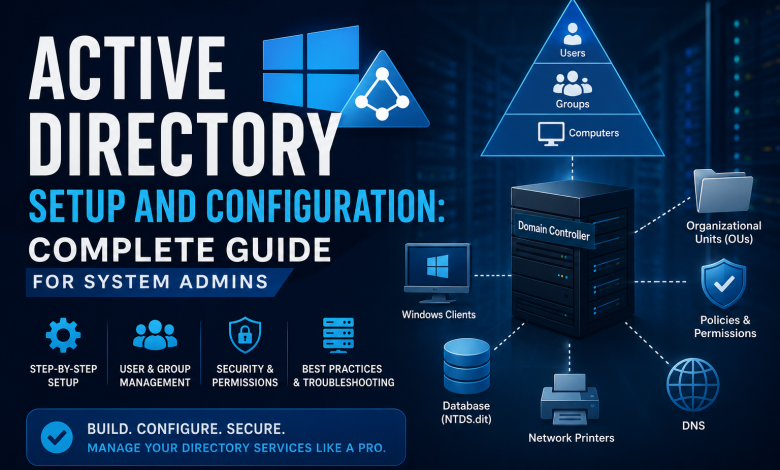
Active Directory is a centralized database for:
Users: Who can access what Computers: What devices are on the network Resources: Printers, file shares, applications Policies: Rules applied automatically
Everything authenticates through AD.
One user login = access to all authorized resources.
Part 1: Planning Before Installation
Choose Domain Name Carefully
The domain name is permanent. Changing it later is painful.
Good choices:
company.com
corp.example.com
ad.company.local (if not using on internet)
Avoid:
.local (can cause issues)
Hostnames (example: "server" as domain)
Best practice: Use standard domain format. Once chosen, you’re stuck with it.
Plan Your Organizational Unit (OU) Structure
Organizational Units organize users and computers by department/function.
Good structure:
example.com
├─ Sales
│  ├─ Users
│  ├─ Computers
│  └─ Resources
├─ IT
│  ├─ AdminUsers
│  ├─ Servers
│  └─ AdminComputers
├─ Finance
│  ├─ Users
│  ├─ Computers
│  └─ Resources
└─ Shared Resources
   ├─ Printers
   ├─ FileShares
   └─ Applications
Why OUs matter:
- Apply Group Policy to specific departments
- Different security policies per department
- Easy to manage permissions
- Scaling as company grows
Best practice: Plan OU structure before installation. Reorganizing later is complex.
Plan Your Group Strategy
Groups are used for:
- Access control
- Software deployment
- Permission management
Example groups:
SalesTeam_FileShareAccess = people with access to sales folder
PrinterAccess_HP4050 = people who can print to specific printer
Office2021Users = computers getting Office deployed
RestrictedUsers = limited access users
Best practice: Don’t nest groups more than 2 levels deep. Tracking permissions becomes impossible.
Part 2: Installing Active Directory
System Requirements
Minimum:
- Windows Server 2019 or 2022
- 2GB RAM (realistically 4-8GB)
- 10GB disk space (minimum)
- Static IP address
- Good hardware (AD gets busy)
Network requirements:
- DNS configured to point to AD server
- Connectivity to all client computers
- Proper firewall rules
Installation Steps
- Install Active Directory Domain Services role Server Manager > Add Roles > Active Directory Domain Services
- Promote to Domain Controller Server Manager > Promote this server to domain controller
- Create new forest and domain Domain name: example.com Forest functional level: 2016 (or higher)
- Configure DNS and DHCP integration AD requires DNS working properly
- Verify installation
   dcdiag         // Verify DC health
   nltest /dsgetdc // Verify connectivity
Part 3: Core AD Configuration
Create Organizational Units
New-ADOrganizationalUnit -Name "Sales" -Path "DC=example,DC=com"
New-ADOrganizationalUnit -Name "Users" -Path "OU=Sales,DC=example,DC=com"
New-ADOrganizationalUnit -Name "Computers" -Path "OU=Sales,DC=example,DC=com"
Create Security Groups
New-ADGroup -Name "SalesTeam_FileShare" `
    -GroupScope Global `
    -GroupCategory Security `
    -Path "OU=Groups,DC=example,DC=com"

New-ADGroup -Name "IT_Admins" `
    -GroupScope Global `
    -GroupCategory Security `
    -Path "OU=Groups,DC=example,DC=com"
Create Users
New-ADUser -Name "John Smith" `
    -SamAccountName "jsmith" `
    -UserPrincipalName "jsmith@example.com" `
    -Path "OU=Users,OU=Sales,DC=example,DC=com" `
    -AccountPassword (ConvertTo-SecureString "TempPassword123!" -AsPlainText -Force) `
    -Enabled $true

Add-ADGroupMember -Identity "SalesTeam_FileShare" -Members "jsmith"
Domain-Join Computers
Computers must join domain to authenticate users:
1. Computer > Properties > Advanced
2. Change > Domain
3. Enter domain name: example.com
4. Provide admin credentials
5. Restart
Part 4: Group Policy Configuration
Group Policy applies rules across users and computers.
Create and Apply Group Policy
// Create policy object
New-GPO -Name "SalesTeam_Policy" -Path "OU=Sales,DC=example,DC=com"

// Configure password policy
gpdit.msc // Opens Group Policy editor
Common Policies
Password Requirements:
- Minimum 12 characters
- Must change every 90 days
- Can’t reuse last 5 passwords
- Account locks after 5 wrong attempts
Security Policies:
- Disable USB ports
- Block unauthorized applications
- Require encryption
- Firewall requirements
Software Deployment:
- Deploy Office
- Deploy antivirus
- Deploy monitoring tools
Best practice: Only create policies you actually need. Too many policies become unmanageable.
Part 5: User and Computer Management
Common Administrative Tasks
Reset Forgotten Password:
Set-ADUserPassword -Identity "jsmith" -Reset -NewPassword (ConvertTo-SecureString "NewPassword123!" -AsPlainText -Force)Disable Inactive Users:
Search-ADAccount -AccountInactive -TimeSpan 90.00:00:00 |
Disable-ADAccount
Find Users in Specific Group:
Get-ADGroupMember -Identity "SalesTeam_FileShare"Move User to Different OU:
Move-ADObject -Identity "CN=jsmith,OU=OldOU,DC=example,DC=com" `
    -TargetPath "OU=NewOU,DC=example,DC=com"
Export All Users to CSV:
Get-ADUser -Filter * -Properties Name, Email, Department |
Export-Csv -Path "C:\AllUsers.csv"
Part 6: Security Best Practices
Implement Proper Backups
Active Directory failure = entire infrastructure down.
Backup strategy:
- Daily AD backups
- Test recovery regularly
- Off-site backup copies
- Document recovery process
Tools: Veeam, Acronis, Windows Backup
Monitor Active Directory
Monitor:
- User logon failures
- Failed password resets
- Unauthorized access attempts
- Replication health
- Group Policy application
Tools: Event Viewer, Azure AD Connect, third-party monitoring
Plan for Disaster Recovery
Minimum requirements:
- 2 Domain Controllers (for redundancy)
- DNS redundancy
- Backup procedures
- Tested recovery process
If primary DC fails:
- Secondary DC takes over
- Users can still authenticate
- Services continue
Part 7: Common Issues and Solutions
Issue 1: User Can’t Log In
Possible causes:
- Account disabled
- Password expired
- Account locked
- Computer not domain-joined
How to troubleshoot:
Get-ADUser -Identity "username" -Properties * |
    Select-Object Enabled, LockedOut, PasswordExpired
Solutions:
- Enable account: Enable-ADAccount
- Unlock account: Unlock-ADAccount
- Reset password: Set-ADUserPassword
Issue 2: Computer Won’t Domain-Join
Possible causes:
- Network connectivity
- DNS not working
- Computer name conflicts
- Permissions issue
Troubleshooting:
- Test network connectivity
- Verify DNS resolves domain
- Check for duplicate computer names
- Verify user has join permissions
Issue 3: Group Policy Not Applying
Verify policies applied:
gpresult /h report.htmlIf policy missing:
- Verify computer/user in correct OU
- Verify policy linked to OU
- Reboot computer (policies need reboot)
- Force update: gpupdate /force
Part 8: Active Directory Best Practices
Planning Pays Off
What to plan:
- Domain name (permanent)
- OU structure (can change, but painful)
- Group strategy (easy to fix later)
- Backup plan (critical)
- Disaster recovery (non-negotiable)
Document Everything
Document:
- Why each OU exists
- Why each group exists
- Which policies apply where
- Password policies
- Security requirements
- Recovery procedures
Test Before Implementing
Never deploy untested policies to production.
Process:
- Create test OU
- Test policy on test users/computers
- Verify intended behavior
- Deploy to production
Monitor Continuously
Monitor:
- User logon health
- Group Policy application
- Failed authentications
- Replication health
- Backup success
Conclusion: Get It Right From The Start
Active Directory is critical infrastructure.
Setup takes time to get right, but pays dividends.
Spend time on:
- Planning before installation
- OU structure
- Group strategy
- Security policies
- Backup procedures
- Disaster recovery
The first month takes extra time.
The next 5 years are smooth because you planned well.