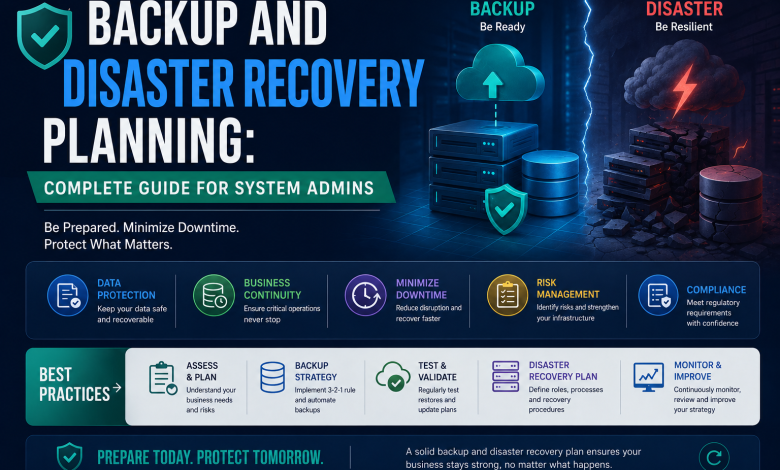
Introduction: One Backup Could Save Your Company
Cost of data loss:
- Average ransomware attack: $5.13 million (2024 data)
- Average downtime: 21 days
- Customer trust: Permanently damaged
- Company reputation: Destroyed
Cost of good backup strategy:
- Time to implement: 20-40 hours
- Cost: $0-5,000 (mostly your time)
- ROI: Infinite (prevents catastrophic loss)
This guide teaches practical backup and disaster recovery that actually works:
- Real-world backup strategies
- Testing that proves recovery works
- RTO/RPO calculations
- Step-by-step implementation
- Complete recovery procedures
- Compliance and regulations
Not theory. Just what actually saves companies.
Part 1: Understanding Backup Fundamentals
What Is a Backup?
A backup is a complete copy of your data stored separately from the original.
Without backup:
Server crashes → Data gone → Company stops → Goodbye job

With backup:
Server crashes → Restore from backup → 1 hour downtime → Business continues
Why backups matter:
- Hardware fails (it always does)
- Ransomware strikes (it happens to everyone)
- Human error deletes files
- Natural disasters destroy data centers
- Software corruption
- Cyberattacks
The question isn’t “Will we need a backup?” The question is “When will we need a backup?”
The 3-2-1 Backup Rule (Industry Standard)
Every system admin should know this:
3 = Three copies of your data
    - Original (production)
    - Copy 1 (local backup)
    - Copy 2 (another local backup or cloud)

2 = Two different media types
    - Don't store everything on same hardware
    - Example: Disk + Tape OR Disk + Cloud

1 = One copy offsite
    - Not in same building as original
    - Protects against physical disaster
    - Cloud storage counts as offsite
Real example:
Production data (original):
- Location: Main data center
- Hardware: SAN storage

Backup copy 1 (local):
- Location: Same data center
- Hardware: NAS (Network Attached Storage)
- Purpose: Fast recovery

Backup copy 2 (local, different media):
- Location: Same data center
- Hardware: Tape drive
- Purpose: Long-term retention

Backup copy 3 (offsite):
- Location: Cloud (AWS, Azure, or other data center)
- Hardware: Cloud storage
- Purpose: Disaster recovery if site destroyed

This is the proper 3-2-1 strategy.
Why it works:
- Multiple copies = data never lost
- Different media = hardware failure not catastrophic
- Offsite copy = natural disaster doesn’t destroy everything
RTO vs RPO (Critical Concepts)
RPO = Recovery Point Objective
"How much data can we afford to lose?"

Example:
- RPO = 1 hour
- Means: Maximum 1 hour of data loss acceptable
- Backup frequency: Every hour (or better)

If server crashes at 2:00 PM and last backup was 1:00 PM:
- Lost 1 hour of work
- Acceptable (within RPO)

If backup was at 12:00 PM:
- Lost 2 hours of work
- UNACCEPTABLE (exceeds RPO)

RPO drives backup frequency.
Short RPO = More frequent backups = Higher cost
RTO = Recovery Time Objective
"How long can we afford to be down?"

Example:
- RTO = 4 hours
- Means: Maximum 4 hours of downtime acceptable
- Recovery must take less than 4 hours

If system goes down at 2:00 PM:
- Must be recovered by 6:00 PM
- If recovery takes 6 hours = FAILED
- If recovery takes 2 hours = SUCCESS

RTO drives recovery strategy.
Short RTO = Need redundant systems = Higher cost
Real scenario:
Company: E-commerce business
- Every hour of downtime = $10,000 lost
- Every hour of data loss = $50,000 in customer refunds

RTO requirement: 1 hour maximum
RPO requirement: 15 minutes maximum

Cost analysis:
- Without: 1 day downtime = $240,000 loss + reputation damage
- With backup/DR: $30,000/year in infrastructure

Investment = Insurance. ROI = Infinite.
Part 2: Backup Strategy (What To Back Up)
Critical vs Non-Critical Data
Critical data (MUST back up):
- Databases
- Email servers
- File shares (user documents)
- Configuration files
- Virtual machines
- Domain controllers
- Applications
Non-critical data (Can skip):
- OS installation media (can reinstall)
- Temporary files (can recreate)
- Downloaded content (can re-download)
- Cached data (can rebuild)
- Test environments (can rebuild)
Real example:
Windows Server with:
- OS files: 50 GB (skip - can reinstall)
- SQL Server database: 200 GB (CRITICAL - must backup)
- User files: 300 GB (CRITICAL - must backup)
- Temp files: 50 GB (skip - rebuild)

Backup only: 500 GB (databases + user files)
Skip: 100 GB (OS + temp)

Saves 20% backup storage + faster backups
Backup Types Explained
Full Backup
What: Everything backed up
Time: Long (hours for large data)
Storage: Lots (stores everything)
Recovery: Fast (have everything)

Use case: Weekly or monthly

Example:
- Sunday 2 AM: Full backup (entire database)
- Time: 3 hours
- Size: 200 GB
Incremental Backup
What: Only changes since last backup
Time: Short (minutes)
Storage: Small (only changes)
Recovery: Slower (need full + all incrementals)

Use case: Daily

Example:
- Monday 2 AM: Incremental (only 5 GB of changes)
- Time: 15 minutes
- Size: 5 GB
- Recovery: Need Sunday full + Monday incremental
Differential Backup
What: Changes since last full backup
Time: Medium (between full and incremental)
Storage: Medium (grows each day)
Recovery: Faster (need full + last differential)

Use case: Daily

Example:
- Monday 2 AM: Differential (5 GB of changes)
- Tuesday 2 AM: Differential (12 GB cumulative)
- Wednesday 2 AM: Differential (18 GB cumulative)
- Recovery: Need Sunday full + Wednesday differential only
Smart strategy:
Weekly full backup: Sunday 2 AM (3 hours)
Daily incremental: Monday-Saturday 2 AM (15 min each)

Storage calculation:
- 1 full backup: 200 GB
- 6 incremental backups: 30 GB
- Total: 230 GB

Recovery if Friday fails:
- Restore Sunday full (200 GB)
- Restore Monday-Friday incrementals (25 GB)
- Time: ~45 minutes
- No data loss (within RPO)
Part 3: Backup Execution (How To Back Up)
🔐 Secure More Than Just This Feature
This article focuses on one security topic.
The Windows Server Security Hardening Toolkit walks you through securing your entire Windows Server environment—from Active Directory and Microsoft Defender to PowerShell logging, auditing, monitoring, and incident response.
- ✔ 200+ Page Playbook
- ✔ Security Checklists
- ✔ Audit Worksheet
- ✔ PowerShell Guide
- ✔ Incident Response Card
When to Back Up (Backup Windows)
Best practices:
- During off-hours (less user impact)
- When backups won’t interfere with production
- But frequent enough to meet RPO
Real example:
E-commerce company:
Peak hours: 9 AM - 9 PM (high traffic)
Low hours: 10 PM - 8 AM

Backup schedule:
- 10 PM: Start incremental backup (1 hour)
- Completes before midnight
- Won't impact user traffic

Alternative:
- 1 AM - 2 AM: Full backup (low traffic guaranteed)
Backup Methods
Method 1: Built-in OS Backup (Windows)
Windows Server Backup (built-in):

Pros:
✅ Free
✅ Integrated
✅ Works well for small deployments

Cons:
❌ Limited features
❌ No deduplication
❌ Can't back up while system running

PowerShell script:
$BackupPolicy = New-WBPolicy
Add-WBFileSpec -Policy $BackupPolicy -FileSpec "C:\Data"
Add-WBBackupTarget -Policy $BackupPolicy -BackupTarget "D:\Backups"
Set-WBSchedule -Policy $BackupPolicy -Schedule 2:00
Set-WBPolicy -Policy $BackupPolicy -Force

Write-Host "Backup scheduled for 2:00 AM daily"
Method 2: Third-Party Backup Software
Popular options:
Veeam Backup:
- Enterprise backup solution
- Works with VMs, physical, cloud
- Deduplication (saves space)
- Cost: $1,000-10,000/year

Acronis Backup:
- Hybrid backup solution
- Works with everything
- Easy to use
- Cost: $500-5,000/year

Backup Exec:
- Legacy but still used
- Works with many systems
- Cost: $2,000-15,000/year

Bacula (open source):
- Free
- Complex setup
- Good for large environments
Method 3: Cloud Backup
Azure Backup:
- Backup VMs to Azure
- Backup files to Azure
- Automatic, scheduled
- Pay per GB

AWS Backup:
- Backup EC2, RDS, EBS
- Automatic, centralized
- Pay per backup

Google Cloud Backup:
- Backup Compute Engine instances
- Automatic recovery
- Pay per GB
Part 4: Disaster Recovery Planning
The 4-Step Disaster Recovery Process
Step 1: Identify Critical Systems
List all systems:
- Email (Critical: 4 hour RTO)
- File shares (Critical: 1 hour RTO)
- Databases (Critical: 1 hour RTO)
- Web server (Important: 8 hour RTO)
- Development server (Not critical: 24 hour RTO)
- Test environment (Not critical: No RTO)

Focus on critical systems first.
Step 2: Create Recovery Procedures
For each critical system, document:
SYSTEM: SQL Server Database
RTO: 1 hour
RPO: 15 minutes

Recovery steps:
1. Verify backup integrity (5 min)
2. Restore to recovery server (30 min)
3. Verify data integrity (10 min)
4. Switch DNS to recovery server (5 min)
5. Verify application can connect (5 min)
6. Total time: 55 minutes (within RTO!)

Who does this:
- Admin 1: Restores backup
- Admin 2: Verifies application
- Manager: Approves cutover
Step 3: Document Everything
Create runbooks:
DISASTER RECOVERY RUNBOOK

System: Email Server
Date written: 2026-06-27
Last tested: 2026-06-15

RECOVERY PROCEDURE:

1. Check backup storage
   Location: \\backup-server\email-backup
   File name: Exchange-2026-06-27.bak
   Size: 150 GB
   Backup intact: YES

2. Provision recovery server
   Hardware: Same as production
   OS: Windows Server 2022
   Storage: 500 GB available
   Time: 30 minutes

3. Restore from backup
   Command: Restore-ExchangeDatabase -Identity "Mailbox Database"
   Time: 45 minutes
   Expected size: 150 GB

4. Verify recovery
   - Can admin log in: YES
   - Can users access mail: YES
   - All mailboxes recovered: YES

5. Switch users
   Update DNS MX record
   Point to recovery server IP
   Wait 15 minutes for propagation
   Users can access mail

Total time: 90 minutes (within RTO!)

Contact list:
- Email Admin: John (555-0001)
- Network Admin: Sarah (555-0002)
- Manager: Mike (555-0003)
Step 4: Test Regularly
Monthly disaster recovery test:

Month 1: Test backup integrity
- Verify backups can be read
- Test restore to temp server
- No data loss
- Time: 2 hours

Month 2: Test email recovery
- Restore email to temp server
- Verify all mailboxes
- Verify data integrity
- Time: 3 hours

Month 3: Test database recovery
- Restore database to temp
- Run integrity checks
- Verify application can connect
- Time: 2 hours

Month 4: Test file server recovery
- Restore files to temp location
- Verify restore success
- Check file integrity
- Time: 1 hour

Quarterly: Full DR test
- Simulate complete datacenter failure
- Recover ALL systems
- Run for 2 hours in test environment
- Document what worked/failed
- Update procedures
Part 5: Real Disaster Scenarios
Scenario 1: Ransomware Attack (Most Common)
Timeline of attack:

2:00 PM: Ransomware infects network
- Encrypts all files
- Demands $100,000 bitcoin ransom
- Threatens to publish data

2:15 PM: Users notice files encrypted
- Can't access documents
- Desktop background changed
- Ransom note everywhere

2:30 PM: IT team notified
- Identify ransomware: LockBit 3.0
- Check backups: All intact (offsite backup safe!)
- Check RTO: 4 hours acceptable

3:00 PM: Disconnect infected systems
- Remove from network
- Prevent spread
- Preserve evidence for investigation

4:00 PM: Restore from backup
- Restore all files from yesterday's backup
- Verify restoration success
- Users back to work

5:00 PM: Investigation
- How did ransomware get in?
- Update security
- Prevent future attacks

RESULT:
- No ransom paid
- 3 hours downtime
- All data recovered
- Within RTO ✓

Cost comparison:
- Ransom: $100,000
- Downtime loss: $30,000
- With backup cost: $0
- Savings: $130,000

This is why backups matter!
Scenario 2: Hardware Failure (Common)
Scenario: Database server hard drive fails

10:00 AM: Database server offline
- Hard drive failed
- Can't restart
- Application down

10:05 AM: Admin checks backups
- Latest backup: 2 hours ago (8:00 AM)
- Backup location: Cloud (Azure)
- Backup verified: Yes

10:10 AM: Provision new server
- Spin up new Azure VM
- 10 minutes

10:20 AM: Restore database
- Start restore from backup
- 30 minutes

10:50 AM: Verify database
- Check data integrity
- Verify application connects
- 10 minutes

11:00 AM: Users back to work
- Total downtime: 1 hour
- Data lost: 2 hours (acceptable within RPO)
- Application recovered

Cost:
- New hardware: $2,000
- Downtime cost: $10,000
- With backup: $0 loss (within RPO)
- Without backup: Complete data loss = $500,000+

Backup saved $500,000+ from potential loss
Read Also :
Active Directory Setup and Configuration: Complete Guide for System Admins
VMware vSphere: Infrastructure Management and Optimization Guide
Part 6: Compliance & Regulations
What Regulations Require Backups?
GDPR (European companies):
- Require: Regular backups
- Require: Ability to recover data
- Require: Testing recovery
- Require: Document procedures
- Penalty: Up to €20 million

HIPAA (Healthcare):
- Require: Backup and disaster recovery
- Require: Minimum RTO: 24 hours
- Require: Minimum RPO: 24 hours
- Require: Annual testing
- Penalty: Up to $1.5 million per violation

SOC 2 (Any company handling customer data):
- Require: Documented backup procedures
- Require: Regular testing
- Require: Offsite backups
- Require: Retention policies
- Penalty: Can't claim SOC 2 compliance

PCI-DSS (Credit card processing):
- Require: Full system backups
- Require: Quarterly testing
- Require: Document procedures
- Penalty: Fines + loss of payment processing

Action items:
☐ Identify which regulations apply to you
☐ Document compliance requirements
☐ Implement required RTO/RPO
☐ Test according to requirements
☐ Document everything for audits
Part 7: Backup Testing Checklist
Monthly Backup Test:
☐ Can we read the backup?
  - Open backup location
  - Verify files present
  - Verify file sizes reasonable

☐ Can we restore the backup?
  - Restore to test location
  - Verify all files restored
  - Verify file integrity

☐ Is it within our RTO?
  - Time to restore: ___ minutes
  - Target RTO: ___ minutes
  - Status: ✓ Pass / ✗ Fail

☐ Is it within our RPO?
  - Backup age: ___ hours
  - Target RPO: ___ hours
  - Status: ✓ Pass / ✗ Fail

☐ Document any issues
  - What failed: ___
  - How to fix: ___
  - Update procedures: ___
Part 8: Backup Cost Analysis
Real Example: Small Company (100 Users)
SYSTEM INVENTORY:
- File server: 2 TB
- Email server: 500 GB
- Database: 1 TB
- VMs: 3 × 500 GB = 1.5 TB
- Total data: 5 TB

BACKUP STRATEGY: 3-2-1 Rule
- 3 copies: Original + 2 backups
- 2 media: NAS (local) + Cloud (offsite)
- 1 offsite: Azure storage

BACKUP SOLUTION:
- Backup software: Veeam ($3,000/year)
- NAS storage: 15 TB ($2,000 one-time, $200/year)
- Cloud storage (Azure): 20 TB × $23/month = $3,312/year
- Staff time: 40 hours/year = $2,000

TOTAL FIRST YEAR: $10,312
TOTAL ANNUAL: $5,512

COST PER TB: $1,100/year

ROI CALCULATION:
- Cost of 1 day downtime: $50,000
- Cost of data loss: $200,000
- Cost of reputation damage: Priceless

Backup cost is insurance that saves money!
Conclusion: Backups Save Companies
This isn’t theoretical. Backups save companies every day.
I’ve seen:
- Ransomware attacks prevented (backup existed, didn’t pay ransom)
- Hardware failures recovered (restored from yesterday’s backup)
- User errors fixed (restored accidentally deleted files)
- Compliance passed (documented procedures, regular testing)
The question isn’t “Do we need backups?”
The question is “When will we need them?”
And the answer is: soon.
Start implementing a backup strategy today.
Windows Server Security Toolkit
Before You Go…
If this guide helped you, the complete
Windows Server Security Hardening Toolkit
will save you even more time with practical implementation guides,
printable resources, and ready-to-use security templates.
🔐 Explore the Complete Toolkit →
Trusted by Windows Administrators, IT Professionals, and Security Enthusiasts.