
PowerShell for Windows System Administrators: Practical Guide with Real Examples

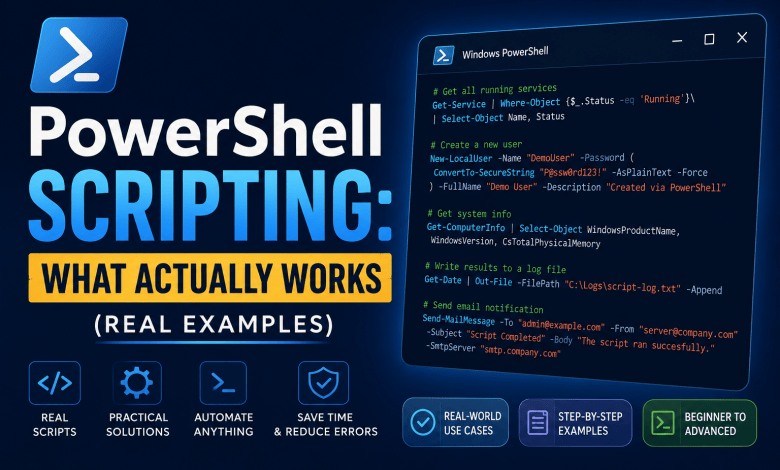
Managing Windows infrastructure manually becomes increasingly difficult as the number of servers grows.
Tasks that are simple on one server can become time-consuming when they need to be repeated across dozens or hundreds of systems. PowerShell helps system administrators turn repetitive tasks into consistent, repeatable automation.
This guide focuses on practical PowerShell techniques and scripts that can be used in Windows administration environments.
You will learn:
- What PowerShell actually is
- Essential PowerShell concepts
- Practical scripts for Windows administrators
- Active Directory automation examples
- Remote server administration
- Error handling and logging
- Safe automation techniques
- Common mistakes to avoid
- PowerShell best practices
The goal is not to learn every PowerShell feature. The goal is to learn how to use PowerShell to solve real infrastructure problems.
What PowerShell Actually Is
PowerShell is Microsoft’s automation and scripting platform for managing systems and automating administrative tasks.
Windows includes Windows PowerShell 5.1, while the newer PowerShell 7 is a separate, actively developed version that can run on Windows, Linux, and macOS. The two versions can coexist on the same Windows system.
For Windows administrators, this distinction matters because some modules and cmdlets behave differently between Windows PowerShell 5.1 and newer PowerShell versions.
The Core Concept
Think of PowerShell as a way to ask the computer questions and then use the answers to perform actions.
Get-Service
Get-Process
Get-ChildItem
For example:
Get-Serviceasks:
“What services exist on this computer?”
While:
Get-Processasks:
“What processes are currently running?”
Most PowerShell cmdlets follow a simple Verb-Noun naming convention.
Examples:
Get-Service— retrieve service informationGet-Process— retrieve process informationSet-ItemProperty— modify a propertyRemove-Item— remove an itemStart-Service— start a service
Once you understand the Verb-Noun pattern, discovering new PowerShell commands becomes much easier.
Part 1: Essential PowerShell Concepts
Cmdlets
A cmdlet is a PowerShell command designed to perform a specific operation.
For example:
Get-Servicereturns information about Windows services.
You can also filter the results:
Get-Service | Where-Object { $_.Status -eq "Running" }This means:
Get the services and return only those whose status is
Running.
Piping
The pipeline is one of the most important concepts in PowerShell.
The pipe character:
|takes the output of one command and passes it to another command.
For example:
Get-Service |
Where-Object { $_.Status -eq "Running" }You can continue the pipeline:
Get-Service |
    Where-Object { $_.Status -eq "Running" } |
    Select-Object Name, DisplayName, Status
This allows you to build relatively complex operations from small commands.
Variables
Variables store values that can be reused later.
$serverName = "Server1"
$date = Get-Date
$services = Get-Service
You can then use those variables:
Write-Host "Checking server: $serverName"Variables become particularly useful when scripts need to process multiple servers or accept user-defined parameters.
Loops
Loops allow you to perform the same operation against multiple objects.
$servers = "Server1", "Server2", "Server3"

foreach ($server in $servers) {
    Write-Host "Checking $server"
}
This basic concept becomes extremely powerful when combined with PowerShell’s administration cmdlets.
For example:
foreach ($server in $servers) {
    Invoke-Command -ComputerName $server -ScriptBlock {
        Get-Service
    }
}
Now the same operation can be executed remotely across multiple servers.
Part 2: Practical PowerShell Scripts for System Administrators
Script 1: Check Disk Space on Multiple Servers
Disk space is one of the most common infrastructure issues.
Instead of manually checking every server, PowerShell can query multiple systems and report volumes below a defined threshold.
The following example uses CIM sessions for remote volume queries:
$servers = "Server1", "Server2", "Server3", "Server4"
$threshold = 10GB

foreach ($server in $servers) {
    $session = $null

    try {
        $session = New-CimSession -ComputerName $server

        Get-Volume -CimSession $session |
            Where-Object {
                $_.DriveLetter -and
                $_.SizeRemaining -lt $threshold
            } |
            ForEach-Object {
                $freeSpace = [math]::Round(
                    $_.SizeRemaining / 1GB,
                    2
                )

                Write-Warning "$server - Drive $($_.DriveLetter): only $freeSpace GB free"
            }
    }
    catch {
        Write-Warning "Unable to query $server : $($_.Exception.Message)"
    }
    finally {
        if ($session) {
            Remove-CimSession $session
        }
    }
}
What it does
- Loops through multiple servers
- Creates a CIM session to each server
- Retrieves volume information
- Checks available disk space
- Reports volumes below 10 GB
- Handles connection errors
- Cleans up the CIM session
Example use case
This type of script can be scheduled to run regularly and used as part of a server health-check process.
For a larger environment, the output could also be written to a CSV file or integrated into a monitoring platform.
Script 2: Find and Delete Old Files
Log files and temporary files can consume significant disk space over time.
A safe approach is to first identify the files that would be deleted before actually removing anything.
param(
    [string]$Path = "C:\Logs",
    [int]$DaysOld = 30,
    [switch]$Delete
)

$cutoffDate = (Get-Date).AddDays(-$DaysOld)

$oldFiles = Get-ChildItem `
    -Path $Path `
    -File `
    -Recurse `
    -ErrorAction Stop |
    Where-Object {
        $_.LastWriteTime -lt $cutoffDate
    }

if ($Delete) {

    $oldFiles | Remove-Item -Force

    Write-Output "Deleted $($oldFiles.Count) files older than $DaysOld days."

}
else {

    Write-Output "Found $($oldFiles.Count) files that would be deleted."

    $oldFiles |
        Select-Object FullName, LastWriteTime, Length
}
What it does
- Searches for files older than a specified number of days
- Displays the files by default
- Deletes them only when
-Deleteis specified - Uses parameters instead of hardcoded values
Example
First, perform a safe review:
.\CleanLogs.ps1 -Path "C:\Logs" -DaysOld 30After verifying the output:
.\CleanLogs.ps1 -Path "C:\Logs" -DaysOld 30 -DeleteThis approach is safer than building a script that immediately deletes files every time it runs.
Script 3: Monitor Critical Windows Services
Critical services are another common system administration task.
For example, an IIS server may depend on the W3SVC service, while other systems may depend on SQL Server or BITS.
For remote administration, PowerShell remoting can be used to execute the service checks on the target server.
$criticalServices = @(
    "W3SVC",
    "MSSQLSERVER",
    "BITS"
)

$servers = @(
    "AppServer1",
    "AppServer2",
    "DBServer1"
)

foreach ($server in $servers) {

    foreach ($service in $criticalServices) {

        try {

            Invoke-Command `
                -ComputerName $server `
                -ScriptBlock {

                    param($ServiceName)

                    $status = Get-Service `
                        -Name $ServiceName `
                        -ErrorAction Stop

                    if ($status.Status -ne "Running") {

                        Start-Service `
                            -Name $ServiceName `
                            -ErrorAction Stop

                        Write-Output `
                            "Service $ServiceName was stopped and has been restarted."

                    }
                    else {

                        Write-Output `
                            "Service $ServiceName is running."
                    }

                } `
                -ArgumentList $service
        }
        catch {

            Write-Warning `
                "Failed to check $service on $server : $($_.Exception.Message)"
        }
    }
}
What it does
- Checks critical services
- Executes the checks remotely
- Detects stopped services
- Attempts to restart them
- Handles connection and service errors
Important consideration
This type of automation should be used carefully.
Automatically restarting a service is not always the correct response to an outage. In some environments, the better approach is to generate an alert and let the operations team investigate.
Before implementing automatic recovery, understand the service dependencies and the potential impact of restarting the service.
PowerShell’s remote administration model has evolved over time, and PowerShell 7 does not support every Windows PowerShell 5.1 parameter in exactly the same way. Using PowerShell remoting explicitly makes the remote operation clearer and more portable.
Script 4: Bulk Active Directory Password Reset
Active Directory automation is one of the areas where PowerShell can save administrators significant time.
For example, you may need to reset passwords for multiple accounts during onboarding or an administrative operation.
Instead of embedding a password directly in a script, use a secure input.
$tempPassword = Read-Host `
    "Enter temporary password" `
    -AsSecureString

$users = Import-Csv -Path "C:\users.csv"

foreach ($user in $users) {

    try {

        Set-ADAccountPassword `
            -Identity $user.SamAccountName `
            -NewPassword $tempPassword `
            -Reset

        Set-ADUser `
            -Identity $user.SamAccountName `
            -ChangePasswordAtLogon $true

        Write-Output `
            "Password reset for $($user.Name)"

    }
    catch {

        Write-Warning `
            "Error resetting password for $($user.Name): $($_.Exception.Message)"
    }
}
Example CSV
SamAccountName
jsmith
adoe
mjohnson
What it does
- Reads usernames from a CSV file
- Requests the temporary password securely
- Resets each account password
- Forces the user to change the password at next logon
- Handles individual failures without stopping the entire operation
The Active Directory module must be available on the system running the script.
Script 5: Export Active Directory Users
PowerShell can also simplify reporting and auditing tasks.
For example:
Get-ADUser `
    -Filter * `
    -Properties EmailAddress, Enabled, LastLogonDate |
    Select-Object `
        Name,
        SamAccountName,
        EmailAddress,
        Enabled,
        LastLogonDate |
    Export-Csv `
        -Path "C:\Reports\AllUsers.csv" `
        -NoTypeInformation

Write-Output "User list exported successfully."
What it does
- Retrieves Active Directory users
- Collects additional properties
- Selects only the required fields
- Exports the result to CSV
The resulting CSV can be opened in Excel or processed by another automation workflow.
Useful scenarios
This can be useful for:
- User audits
- Account reviews
- Management reports
- Disabled-account analysis
- Compliance checks
- Periodic Active Directory reporting
You can also filter the query instead of retrieving every account.
For example, to retrieve only enabled accounts:
Get-ADUser `
    -Filter "Enabled -eq '$true'" `
    -Properties EmailAddress, LastLogonDate
Part 3: Common Mistakes to Avoid
Mistake 1: Not Testing Before Running
One of the easiest ways to turn automation into an incident is to run an untested script directly against production.
Bad approach
# Write script

# Run directly against production

# Discover a problem after the change
Better approach
Write the script
      ↓
Test locally
      ↓
Test against a non-production server
      ↓
Review the output
      ↓
Test the change itself
      ↓
Run against production
For destructive operations, start with a read-only or simulation mode whenever possible.
Use -WhatIf Before Making Changes
PowerShell provides the -WhatIf parameter for many cmdlets that support it.
For example:
Remove-Item "C:\Logs\old.log" -WhatIfPowerShell will show what would happen without actually removing the file.
Another example:
Stop-Service -Name "Spooler" -WhatIfThis is particularly useful when developing scripts that modify production systems.
However, not every cmdlet supports -WhatIf, so always check the cmdlet documentation before relying on it.
Mistake 2: Ignoring Error Handling
A script that works perfectly against one server may fail when it encounters:
- An offline server
- A missing service
- Insufficient permissions
- A network problem
- A missing module
- An unexpected object
- A locked file
Basic example
try {

    Get-Service `
        -Name "ServiceName" `
        -ErrorAction Stop

}
catch {

    Write-Warning `
        "Unable to query the service: $($_.Exception.Message)"
}
The important part is:
-ErrorAction StopWithout it, some non-terminating errors may not trigger the catch block.
For scripts running against multiple servers, error handling is especially important because one failure should not necessarily stop the entire operation.
Mistake 3: Hardcoded Values
A common beginner approach is to put everything directly inside the script.
Less flexible
$path = "C:\Logs"
$daysOld = 30
If another server uses a different path or retention period, the script must be edited.
Better
Use parameters:
param(
    [string]$Path = "C:\Logs",
    [int]$DaysOld = 30
)
Then run:
.\CleanLogs.ps1 `
    -Path "D:\ApplicationLogs" `
    -DaysOld 60
The same script can now be reused across different environments.
Mistake 4: Using Hardcoded Credentials or Passwords
Avoid putting passwords directly into scripts.
Never do this:
$password = "Password123!"Even if the script is intended only as an example, hardcoded credentials can easily find their way into:
- Git repositories
- Backups
- Logs
- Email attachments
- Shared folders
Use secure credential mechanisms such as:
Get-Credentialor:
Read-Host -AsSecureStringFor larger automation platforms, consider using dedicated secret-management solutions rather than storing credentials inside scripts.
Mistake 5: Not Scheduling Properly
A script is not necessarily automation just because it exists.
If an administrator has to remember to execute it manually every Monday, the process is still dependent on human intervention.
Manual approach
Write script
    ↓
Run manually
    ↓
Forget to run it
    ↓
Problem occurs
Automated approach
Write script
    ↓
Test script
    ↓
Schedule execution
    ↓
Log result
    ↓
Alert on failure
Windows Task Scheduler can be used for many straightforward administrative jobs.
For larger environments, scripts can also be integrated with enterprise automation platforms, CI/CD pipelines, configuration management systems, or monitoring solutions.
Part 4: PowerShell Logging and Error Handling
When a script runs interactively, seeing output in the console may be enough.
For scheduled or automated scripts, however, you need to know:
- When the script ran
- What it attempted to do
- What succeeded
- What failed
- Which server failed
- Why it failed
A simple log file can be enough for smaller scripts.
$logFile = "C:\Logs\ServiceMonitor.log"

"[$(Get-Date)] Starting service check" |
    Out-File -FilePath $logFile -Append

"[$(Get-Date)] Checking AppServer1" |
    Out-File -FilePath $logFile -Append
PowerShell also provides different output mechanisms for different situations:
Write-Output "Normal output"

Write-Warning "Something unexpected happened"

Write-Error "The operation failed"

Write-Information "Informational message"
For larger automation projects, consider using structured logging rather than relying only on console output.
Part 5: PowerShell Best Practices
Write Clean Code
Use meaningful variable names.
Good
$serverName = "Server1"
$diskSpace = Get-Volume
Less useful
$s = "Server1"
$x = Get-Volume
Good variable names make scripts much easier to maintain months later.
Add Comments
Comments should explain the purpose or reasoning behind the code.
# List the servers that will be checked
$servers = "Server1", "Server2"

foreach ($server in $servers) {

    # Verify that the server is reachable before querying it
    if (Test-Connection -ComputerName $server -Count 1 -Quiet) {

        Get-Service -ComputerName $server
    }
}
Avoid commenting every obvious line.
The goal is to explain why, not simply repeat what the code already says.
Use Functions for Reusable Code
If you find yourself copying the same code between multiple scripts, consider creating a function.
For example:
function Get-DiskSpace {

    param(
        [Parameter(Mandatory)]
        [string]$ComputerName
    )

    Invoke-Command -ComputerName $ComputerName -ScriptBlock {

        Get-CimInstance -ClassName Win32_LogicalDisk -Filter "DriveType=3" |
            Select-Object `
                DeviceID,
                @{
                    Name = "FreeGB"
                    Expression = {
                        [math]::Round($_.FreeSpace / 1GB, 2)
                    }
                },
                @{
                    Name = "SizeGB"
                    Expression = {
                        [math]::Round($_.Size / 1GB, 2)
                    }
                }
    }
}
Now the function can be reused:
Get-DiskSpace -ComputerName "Server1"

Get-DiskSpace -ComputerName "Server2"
This is one of the first steps from writing one-off scripts toward building reusable automation.
Part 6: PowerShell and Version Compatibility
One important consideration for Windows administrators is PowerShell version compatibility.
Windows PowerShell 5.1 is still included with supported Windows versions, while PowerShell 7 is installed separately and runs side-by-side with Windows PowerShell. Microsoft no longer adds new features to Windows PowerShell 5.1, while PowerShell 7 continues to receive new releases.
Before deploying a script across an enterprise environment, check:
$PSVersionTableFor example:
$PSVersionTable.PSVersionAlso check whether the modules used by the script are available in the target PowerShell version.
This is particularly important for infrastructure automation because enterprise environments often contain a mixture of:
- Windows Server versions
- Windows PowerShell 5.1
- PowerShell 7
- Legacy modules
- Modern modules
- Different administrative tooling
A script that works perfectly on your workstation is not automatically guaranteed to work on every server.
Part 7: PowerShell + Active Directory
Active Directory is one of the areas where PowerShell becomes particularly valuable.
Common administrative tasks include:
- User creation
- User updates
- Group membership
- Password resets
- Account auditing
- Disabled account reports
- Group reports
- OU-based reporting
For example:
Get-ADUser `
    -Filter * `
    -Properties Enabled, LastLogonDate |
    Where-Object {
        $_.Enabled -eq $false
    } |
    Select-Object `
        Name,
        SamAccountName,
        LastLogonDate
This can be used as the basis for a disabled-account audit.
Instead of manually opening Active Directory Users and Computers and checking hundreds of accounts, PowerShell allows administrators to turn the process into repeatable reporting.
Part 8: PowerShell for Infrastructure Automation
The real value of PowerShell appears when individual scripts become part of a larger automation process.
For example:
PowerShell
     ↓
Server Inventory
     ↓
Health Checks
     ↓
Configuration
     ↓
Patching
     ↓
Compliance
     ↓
Reporting
     ↓
Monitoring
PowerShell can also integrate with other infrastructure technologies such as:
- Active Directory
- Windows Server
- IIS
- Azure
- VMware
- Microsoft 365
- Configuration management tools
- CI/CD pipelines
- Monitoring platforms
This is where PowerShell moves from being a scripting language to becoming an infrastructure automation tool.
Part 9: Version Control Your Scripts
If a script is important enough to run repeatedly, it is usually important enough to version.
Instead of keeping scripts only in:
C:\Scriptsconsider storing them in Git.
A simple repository might look like:
powershell-automation/
│
├── ActiveDirectory/
│   ├── Export-ADUsers.ps1
│   └── Find-DisabledUsers.ps1
│
├── WindowsServer/
│   ├── Get-DiskHealth.ps1
│   └── Test-Services.ps1
│
├── Reporting/
│   └── Generate-ServerReport.ps1
│
└── README.md
Git gives you:
- Version history
- Change tracking
- Rollback
- Collaboration
- Code review
- Documentation
For enterprise automation, this becomes increasingly important as the number of scripts grows.
Part 10: Practical PowerShell Workflow for System Administrators
A useful approach to automation is to follow a repeatable workflow.
Step 1 — Identify the repetitive task
Ask:
What am I doing manually over and over?
Examples:
- Checking disk space
- Checking services
- Exporting users
- Collecting server information
- Cleaning logs
Step 2 — Automate information gathering
Start with read-only commands.
Get-Service
Get-Process
Get-CimInstance
Get-ADUser
Step 3 — Add filtering
Use:
Where-Objectto focus on the information that matters.
Step 4 — Add an action
Once the information is correct, automate the required change.
Step 5 — Add error handling
Make sure one failed server does not unexpectedly stop the entire workflow.
Step 6 — Add logging
Record what happened.
Step 7 — Test
Run the automation in a safe environment.
Step 8 — Version it
Store the script in Git.
Step 9 — Schedule or integrate it
Finally, connect it to Task Scheduler, a configuration management platform, CI/CD pipeline, or another automation system.
This workflow helps transform small scripts into maintainable infrastructure automation.
Part 11: Learning Resources
Official Resources
The best place to start when learning PowerShell is Microsoft’s official documentation.
- Microsoft PowerShell Documentation
- What is Windows PowerShell?
- Differences between Windows PowerShell 5.1 and PowerShell 7
- PowerShell Gallery
Community Resources
Community resources can also be useful when troubleshooting specific problems.
- Stack Overflow
- PowerShell community discussions
- GitHub PowerShell projects
When using scripts from community sources, always review and understand the code before running it in your environment.
PowerShell Best Practices Checklist
Before using a PowerShell script in an important environment, ask:
- Did I test the script?
- Did I test it against a non-production system?
- Does it have appropriate error handling?
- Are credentials protected?
- Are important values configurable through parameters?
- Can I use
-WhatIfbefore making destructive changes? - Does the script produce useful logs?
- Is the script stored in version control?
- Is it compatible with the PowerShell version on the target system?
- Do I understand the impact of the changes it makes?
- Is there a rollback or recovery plan?
These practices become increasingly important as scripts move from personal administration tasks into enterprise automation.
Conclusion: Start Small, Build Useful Automation
PowerShell becomes valuable when it solves real administrative problems.
You don’t need to start by building a 1,000-line automation framework.
Start with a simple workflow:
Get information
      ↓
Filter the result
      ↓
Validate the data
      ↓
Take an action
      ↓
Log the result
For example:
Get-Service |
    Where-Object { $_.Status -ne "Running" }
can eventually evolve into a complete service monitoring and remediation workflow.
The same principle applies to:
- Active Directory
- Windows Server
- IIS
- Disk management
- Event logs
- Patching
- Reporting
- Compliance
- Cloud administration
The real skill is not memorizing hundreds of PowerShell commands.
It is learning how to turn a repetitive infrastructure task into a safe, repeatable, maintainable automation process.
🎯 Ready to Secure Your Windows Server?
If you’re looking for a practical, step-by-step resource with checklists, PowerShell commands, audit templates, and incident response guidance, explore the Windows Server Security Hardening Toolkit.
✅ 200+ page playbook ✅ Printable checklists ✅ Excel audit worksheet ✅ PowerShell reference guide


