

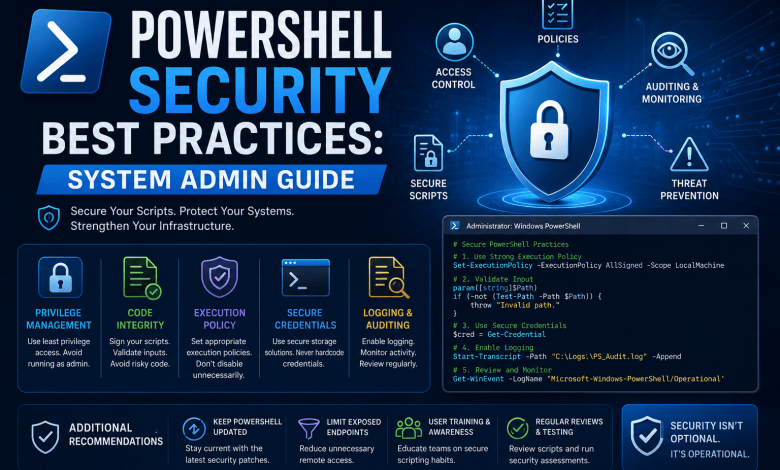
PowerShell is Your Most Powerful Security Tool (Or Your Biggest Risk)
I’ve seen it happen countless times:
A system administrator writes a PowerShell script. It works perfectly. They run it manually. Then one day, someone gets admin credentials and runs malicious PowerShell commands that bypass all your security controls.
The problem:
Most admins use PowerShell every day but don’t think about security. They treat it as a utility, not as a potential attack vector.
The reality:
PowerShell is the most dangerous tool in your Windows environment—not because it’s flawed, but because most people don’t secure it properly.
This article teaches practical PowerShell security that actually works:
- Execution policies that prevent attacks
- Credential management (not in plain text!)
- Script logging that catches attacks
- Remote access security
- Secure automation practices
- Real-world examples
By the end, you’ll know how to use PowerShell as a security tool instead of a liability.
Part 1: Understanding PowerShell Security Risks
Why PowerShell Matters for Security
PowerShell runs with the same privileges as the user executing it. This means:
User with admin rights runs PowerShell
→ PowerShell has admin rights
→ PowerShell can do ANYTHING an admin can do
→ Malicious scripts can do ANYTHING an admin can do

This is why PowerShell security is critical.
Real attack scenario:
Attacker compromises user account: john@company.com
Attacker has access to john's computer

Scenario 1 (No PowerShell security):
- Attacker opens PowerShell
- Runs: Get-ADUser -Filter * | Set-ADUser -Enabled $false
- Disables all Active Directory users
- Company network down
- No audit trail (no logging)
- Nobody knows what happened

Scenario 2 (With PowerShell security):
- Attacker opens PowerShell
- Execution policy blocks: "Cannot be loaded because running scripts is disabled"
- Script logging shows: Attempt to bypass execution policy
- Alert sent to security team
- Attack blocked
- Full audit trail recorded
The difference? One line of security configuration.
Part 2: Execution Policies (First Line of Defense)
What Are Execution Policies?
Execution policies control whether scripts can run and under what conditions.
Level 1 (Most Restrictive):
Restricted
- Scripts cannot run at all
- Only interactive commands work
- Best for: Locked-down systems

Level 2 (Balanced):
AllSigned
- Only signed scripts can run
- Requires code signing certificate
- Best for: Enterprise environments

Level 3 (More Permissive):
RemoteSigned
- Local scripts run freely
- Downloaded scripts must be signed
- Best for: Most organizations

Level 4 (Least Restrictive):
Unrestricted
- All scripts run
- Warning for downloaded scripts
- Best for: Testing only (NEVER production!)
Common mistake:
Admin sets execution policy to Unrestricted for convenience
→ Malicious scripts can run
→ No protection whatsoever
→ This is how ransomware spreads
Implementing Secure Execution Policy
For Domain-Joined Computers (Recommended):
Use Group Policy to enforce execution policy:
Group Policy Editor → Computer Configuration
→ Administrative Templates
→ Windows Components
→ Windows PowerShell
→ Turn on Script Execution
→ Set to "Allow local scripts and remote signed scripts" (RemoteSigned)
Apply to all computers:
# On Domain Controller
New-GPO -Name "PowerShell Security Policy" -Comment "Enforce secure execution"
Set-GPRegistryValue -Name "PowerShell Security Policy" `
    -Key "HKLM\SOFTWARE\Policies\Microsoft\Windows\PowerShell" `
    -ValueName "ExecutionPolicy" -Value "RemoteSigned" -Type String

# Link to domain
New-GPLink -Name "PowerShell Security Policy" -Target "dc=domain,dc=com"

# Force update
gpupdate /force
For Individual Computers:
# Set execution policy for current user
Set-ExecutionPolicy -ExecutionPolicy RemoteSigned -Scope CurrentUser -Force

# Set for all users (requires admin)
Set-ExecutionPolicy -ExecutionPolicy RemoteSigned -Scope LocalMachine -Force

# Verify
Get-ExecutionPolicy -List
Output should show:
        Scope ExecutionPolicy
        ----- ---------------
MachinePolicy       RemoteSigned
   UserPolicy       RemoteSigned
      Process       RemoteSigned
  CurrentUser       RemoteSigned
 LocalMachine       RemoteSigned
Part 3: Script Logging (Catch Attacks)
🔐 Secure More Than Just This Feature
This article focuses on one security topic.
The Windows Server Security Hardening Toolkit walks you through securing your entire Windows Server environment—from Active Directory and Microsoft Defender to PowerShell logging, auditing, monitoring, and incident response.
- ✔ 200+ Page Playbook
- ✔ Security Checklists
- ✔ Audit Worksheet
- ✔ PowerShell Guide
- ✔ Incident Response Card
Why Logging Matters
Execution policies prevent scripts, but advanced attackers bypass them. Logging catches them anyway.
Attack timeline:

2:00 PM: Attacker runs malicious script
2:01 PM: Script executes (bypassed execution policy)
2:02 PM: Script modifies files
2:03 PM: Script creates backdoor account
2:04 PM: Security team gets alert from logs

Without logging: Nobody notices until weeks later
With logging: Caught in 4 minutes
Enable PowerShell Script Logging
Step 1: Enable Module Logging
# Enable Module Logging for all modules
$path = "HKLM:\Software\Policies\Microsoft\Windows\PowerShell\ModuleLogging"
if (!(Test-Path $path)) {
    New-Item -Path $path -Force | Out-Null
}

Set-ItemProperty -Path $path -Name "EnableModuleLogging" -Value 1
Set-ItemProperty -Path $path -Name "*" -Value "*"

Write-Host "Module logging enabled"
Step 2: Enable Script Logging
$path = "HKLM:\Software\Policies\Microsoft\Windows\PowerShell\ScriptBlockLogging"
if (!(Test-Path $path)) {
    New-Item -Path $path -Force | Out-Null
}

Set-ItemProperty -Path $path -Name "EnableScriptBlockLogging" -Value 1

Write-Host "Script block logging enabled"
Step 3: Enable Transcription (Records Everything)
$path = "HKLM:\Software\Policies\Microsoft\Windows\PowerShell\Transcription"
if (!(Test-Path $path)) {
    New-Item -Path $path -Force | Out-Null
}

Set-ItemProperty -Path $path -Name "EnableTranscripting" -Value 1
Set-ItemProperty -Path $path -Name "OutputDirectory" -Value "C:\Transcripts"
Set-ItemProperty -Path $path -Name "IncludeInvocationHeader" -Value 1

# Create transcript directory
if (!(Test-Path C:\Transcripts)) {
    New-Item -ItemType Directory -Path C:\Transcripts -Force | Out-Null
}

Write-Host "Transcription enabled. Logs: C:\Transcripts"
Review PowerShell Logs
View in Event Viewer:
Event Viewer
→ Windows Logs
→ Application
→ Filter by Source: "PowerShell"

Look for:
- Event ID 400: PowerShell started
- Event ID 403: Engine stopped
- Event ID 800+: Script execution details
Or via PowerShell:
# Get recent PowerShell events
Get-EventLog -LogName Application -Source PowerShell -Newest 100 |
    Select-Object TimeGenerated, Message |
    Format-Table -AutoSize

# Export to CSV for analysis
Get-EventLog -LogName Application -Source PowerShell -Newest 1000 |
    Export-Csv -Path "C:\Reports\PowerShell-Events.csv" -NoTypeInformation
Part 4: Credential Management (Never Hard-Code Passwords)
The Biggest PowerShell Security Mistake
WRONG (Don’t do this):
# Password in plain text!
$username = "admin@domain.com"
$password = "MyPassword123!"
$cred = New-Object System.Management.Automation.PSCredential($username,
    (ConvertTo-SecureString -String $password -AsPlainText -Force))

# Now anyone who reads the script knows the password!
PROBLEM:
- Password visible in script
- Password in command history
- Password in event logs
- Password shared with anyone who sees code
- Password stored in plain text
This is how companies get breached.
Secure Credential Handling
Method 1: Use Windows Credential Manager (Recommended)
# Store credential securely (one-time setup)
$username = "admin@domain.com"
$cred = Get-Credential -Message "Enter credentials to store"
$cred.Password | ConvertFrom-SecureString |
    Set-Content "C:\Secure\admin-cred.txt"

# Retrieve credential in script (safe)
$credPath = "C:\Secure\admin-cred.txt"
$username = "admin@domain.com"
$password = Get-Content $credPath | ConvertTo-SecureString
$cred = New-Object System.Management.Automation.PSCredential($username, $password)

# Use credential securely
Get-ADUser -Credential $cred -Filter * | Export-Csv "C:\Reports\users.csv"
Method 2: Use Managed Service Account (Enterprise)
For servers, use Managed Service Accounts (MSA):
# Create MSA in Active Directory
New-ADServiceAccount -Name "ScriptRunner" -DNSHostName "scriptrunner.domain.com"

# Install on server
Install-ADServiceAccount -Identity "ScriptRunner"

# Use in script (no password needed!)
$cred = New-Object System.Management.Automation.PSCredential(
    "domain\ScriptRunner$",
    (Read-Host -AsSecureString)
)
Method 3: Use API Keys / Service Principals (Cloud)
For cloud services:
# Store in environment variables (CI/CD pipeline)
$apiKey = $env:API_KEY

# Or use Azure Key Vault
$secret = Get-AzKeyVaultSecret -VaultName "MyVault" -Name "api-key"
$apiKey = $secret.SecretValueText
Part 5: Remote Access Security
Secure WinRM (Windows Remote Management)
WinRM is how PowerShell remoting works. Secure it properly.
Enable WinRM Securely:
# Enable WinRM with HTTPS only (not HTTP!)
Enable-PSRemoting -Force

# Configure to use HTTPS
$thumbprint = (Get-ChildItem Cert:\LocalMachine\My |
    Where-Object {$_.Subject -like "*server.domain.com*"}).Thumbprint

Set-Item -Path WSMan:\localhost\Listener\*\Transport\HTTPS\Enabled -Value $true
Set-Item -Path WSMan:\localhost\Listener\*\Transport\HTTP\Enabled -Value $false

# Require authentication
Set-Item -Path WSMan:\localhost\Service\Auth\Basic -Value $false
Set-Item -Path WSMan:\localhost\Service\Auth\Kerberos -Value $true

Write-Host "WinRM secured with HTTPS + Kerberos"
Restrict Remote Access to Specific Users:
# Create remote access group
New-ADGroup -Name "PowerShell-RemoteAccess" -GroupScope Global `
    -Description "Users allowed remote PowerShell access"

# Configure in session configuration
Register-PSSessionConfiguration -Name RestrictedShell -ProcessName powershell `
    -RunAsCredential (Get-Credential) -Force

# Restrict to group
Set-PSSessionConfiguration -Name RestrictedShell -ShowSecurityDescriptorUI
Secure Remote Execution
Good: Define what scripts can run remotely
# Create approved scripts folder
New-Item -ItemType Directory -Path "C:\ApprovedScripts" -Force

# Only allow signed scripts
Set-ExecutionPolicy -ExecutionPolicy AllSigned -Scope Process

# Copy approved scripts to folder
Copy-Item "C:\Scripts\Update-Users.ps1" -Destination "C:\ApprovedScripts\"

# Remote users can only run from this folder
Invoke-Command -ComputerName server.domain.com `
    -ScriptBlock { & "C:\ApprovedScripts\Update-Users.ps1" }
Part 6: Secure Scripting Patterns
Pattern 1: Use #Requires for Security
# At top of every script
#Requires -Version 5.1
#Requires -RunAsAdministrator
#Requires -Modules ActiveDirectory

# This ensures:
# - Script won't run on older PowerShell
# - Script requires admin rights
# - Required modules are available
Pattern 2: Input Validation
# BAD: Trust user input
$username = Read-Host "Enter username"
Disable-ADAccount -Identity $username  # What if they enter: john; Remove-ADUser -Identity *

# GOOD: Validate input
$username = Read-Host "Enter username"
if (-not ($username -match '^[a-zA-Z0-9._-]+$')) {
    Write-Error "Invalid username format"
    exit 1
}
Disable-ADAccount -Identity $username
Pattern 3: Error Handling
# BAD: Ignore errors
$users = Get-ADUser -Filter *
$users | Disable-ADAccount

# GOOD: Handle errors securely
$users = Get-ADUser -Filter * -ErrorAction Stop
$users | Disable-ADAccount -ErrorAction Continue -ErrorVariable disableErrors

if ($disableErrors) {
    Write-Error "Errors occurred: $disableErrors"
    exit 1
}
Part 7: Audit & Compliance
Create Security Audit Script
# Audit-PowerShellSecurity.ps1
# Checks PowerShell security settings

Write-Host "PowerShell Security Audit" -ForegroundColor Green

# 1. Check Execution Policy
$execPolicy = Get-ExecutionPolicy
Write-Host "Execution Policy: $execPolicy"
if ($execPolicy -eq "Unrestricted") {
    Write-Host "⚠️  WARNING: Execution policy is Unrestricted!" -ForegroundColor Red
}

# 2. Check if logging is enabled
$logPath = "HKLM:\Software\Policies\Microsoft\Windows\PowerShell\ScriptBlockLogging"
$logEnabled = (Get-ItemProperty -Path $logPath -Name EnableScriptBlockLogging -ErrorAction SilentlyContinue).EnableScriptBlockLogging
Write-Host "Script Logging: $(if ($logEnabled) { 'Enabled' } else { 'Disabled' })"

# 3. Check WinRM security
$winrmSSL = (Get-ChildItem -Path WSMan:\localhost\Listener |
    Where-Object {$_.Name -like "*https*"}).Count
Write-Host "WinRM HTTPS: $(if ($winrmSSL -gt 0) { 'Configured' } else { 'Not Configured' })"

# 4. Check event log size
$appLog = Get-EventLog -LogName Application
$logSize = $appLog | Measure-Object -Property "Length" -Sum
Write-Host "Event Log Size: $([math]::Round($logSize.Sum / 1MB)) MB"

# 5. Review recent PowerShell events
Write-Host "`nRecent PowerShell Activity:"
Get-EventLog -LogName Application -Source PowerShell -Newest 10 |
    Select-Object TimeGenerated, EventID |
    Format-Table -AutoSize
Run monthly to verify security settings.
Part 8: Real-World Security Incident
Case Study: How Logging Saved the Day
Timeline of Attack:

2:15 PM: Attacker gains access to admin account
2:16 PM: Attacker opens PowerShell
2:17 PM: Attacker tries to run malicious script
2:18 PM: Execution policy blocks script
2:19 PM: Attacker tries to disable execution policy
2:20 PM: PowerShell logging captures attempt
2:21 PM: SIEM alert triggered

2:22 PM: Security team notified
2:23 PM: Account locked
2:24 PM: Investigation begins

3:00 PM: Incident contained
3:30 PM: Root cause identified (leaked credentials)
4:00 PM: Credentials reset, investigation complete

Result:
✓ Attack blocked within 10 minutes
✓ Full audit trail of attempted attack
✓ Root cause identified
✓ Threat prevented from spreading

Without logging: Attack could have run for weeks undetected
Cost of attack: $0 (prevented)
Cost of proper logging: <$1,000/year
ROI: Infinite
Part 9: PowerShell Security Checklist
Immediate Actions (Today):
☐ Set execution policy to RemoteSigned
☐ Enable script block logging
☐ Enable transcription
☐ Configure WinRM with HTTPS
☐ Test logging is working
This Week:
☐ Review recent PowerShell events
☐ Remove any hard-coded credentials
☐ Audit all PowerShell scripts
☐ Test remote access security
☐ Create approved scripts folder
This Month:
☐ Deploy Group Policy for execution policy
☐ Deploy Group Policy for logging
☐ Train team on secure scripting
☐ Create audit scripts
☐ Schedule monthly security audits
Ongoing:
☐ Monthly: Run security audit
☐ Quarterly: Review PowerShell events for anomalies
☐ Quarterly: Test incident response procedures
☐ Annually: Update security policies
Conclusion: PowerShell is Safe When Properly Configured
PowerShell itself isn’t the problem. Most breaches happen because:
- Execution policies set to Unrestricted
- Logging not enabled
- Credentials hard-coded
- No access controls
Implement the practices in this guide and your PowerShell environment becomes a security asset, not a liability.
Start with the checklist. Do the immediate actions today.
Your infrastructure will be more secure tomorrow.
Windows Server Security Toolkit
Before You Go…
If this guide helped you, the complete
Windows Server Security Hardening Toolkit
will save you even more time with practical implementation guides,
printable resources, and ready-to-use security templates.
🔐 Explore the Complete Toolkit →
Trusted by Windows Administrators, IT Professionals, and Security Enthusiasts.


